Labfolder offers users two Apps for data validation, Review workflows and Review workflows plus:
The free Review workflows App (previously Sign & Witness) allows you to sign a notebook entry and request 1 more witness.
Review workflows plus, however, is a paid upgrade designed to create complex validation workflows, including multiple witnesses and the option to comment on approval, withdraw signatures or request changes.
The two-step Review workflows process is included in your Labfolder Advanced plan and should be activated by default. You need to have a non-private project shared with at least one other member to sign and witness an entry.
The following steps will guide you through the process of signing and witnessing Labfolder entries.
Signing
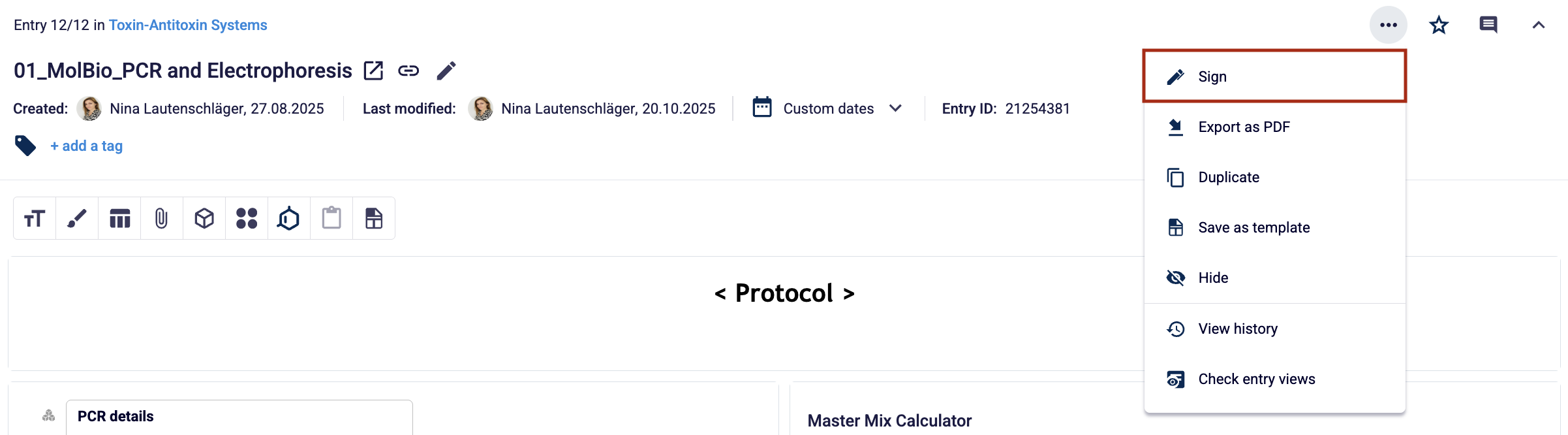
1.Once you have completed your entry, choose Sign from the vertical-dots menu.
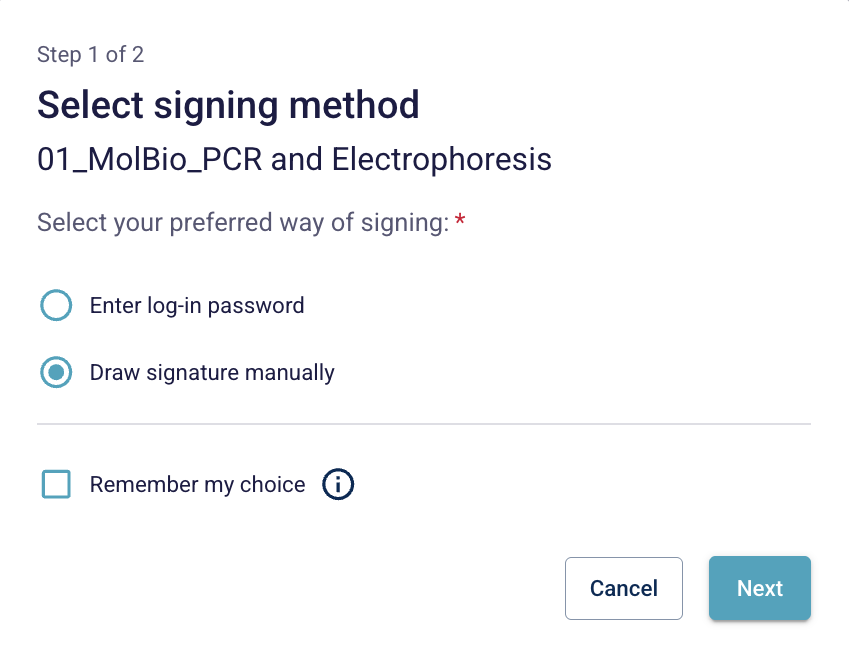
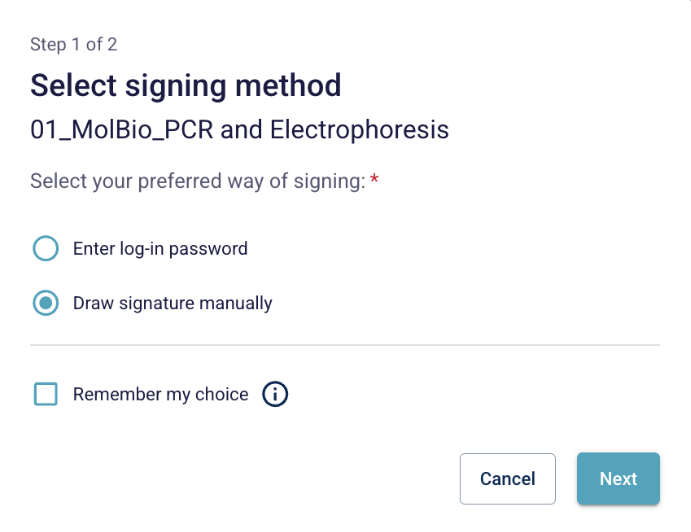
2. You’ll be asked to select your signing method. You can either sign by entering your Log-in password or Draw signature manually.
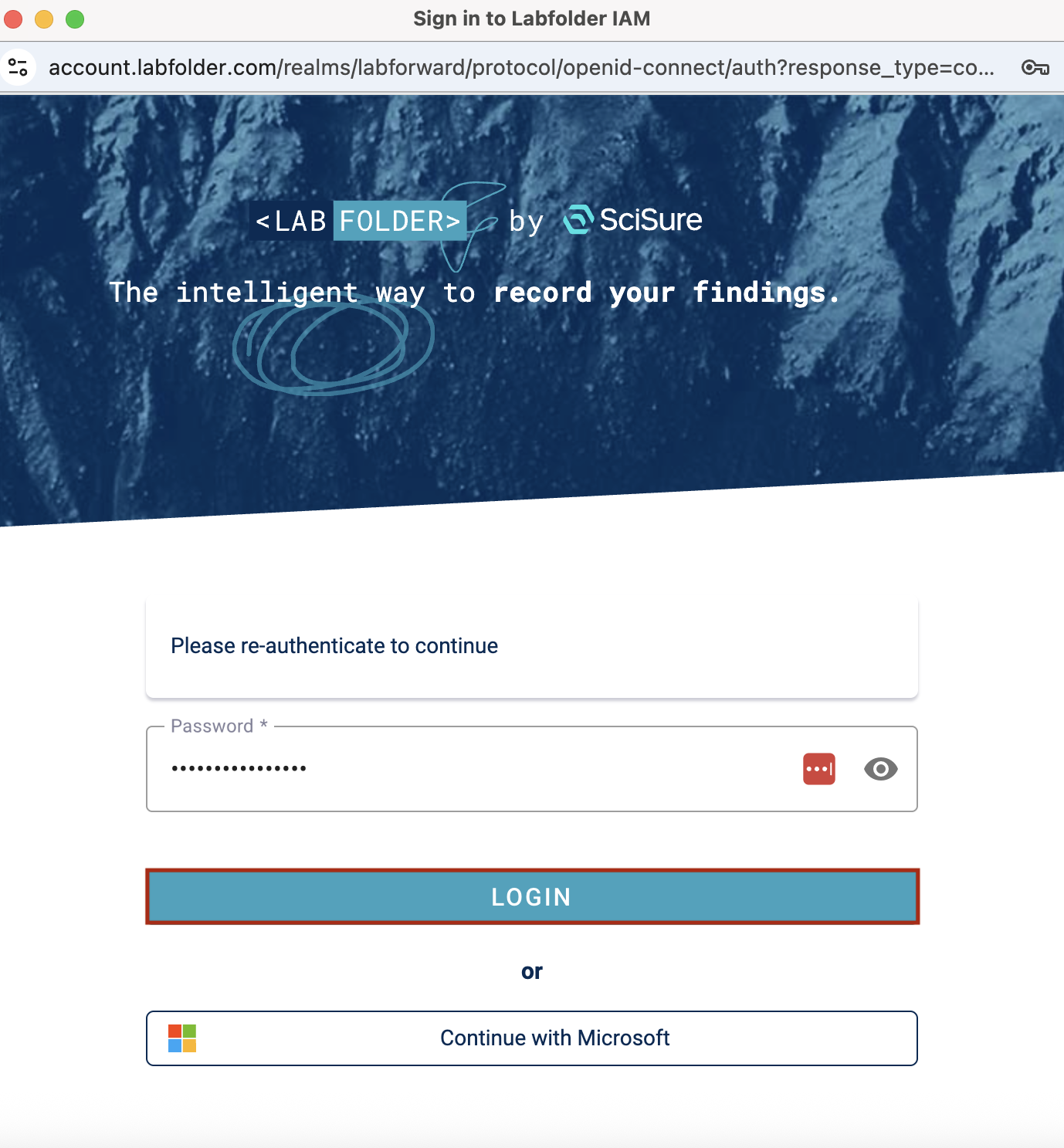
3. If you have selected Enter log-in password, you must authenticate by entering your password. Click LOGIN to continue. Note that, after signing the entry, no further modifications to its content will be possible.
4. In case Two-Factor Authentication is active, you are also prompted for a one-time code. Enter the code and click AUTHENTICATE to continue.
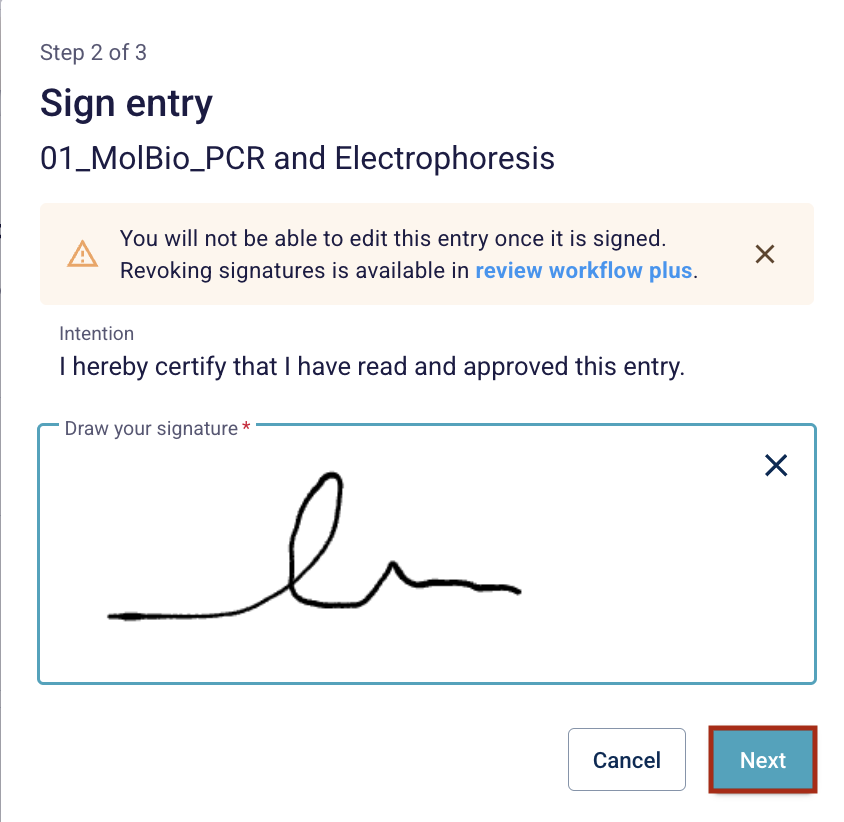
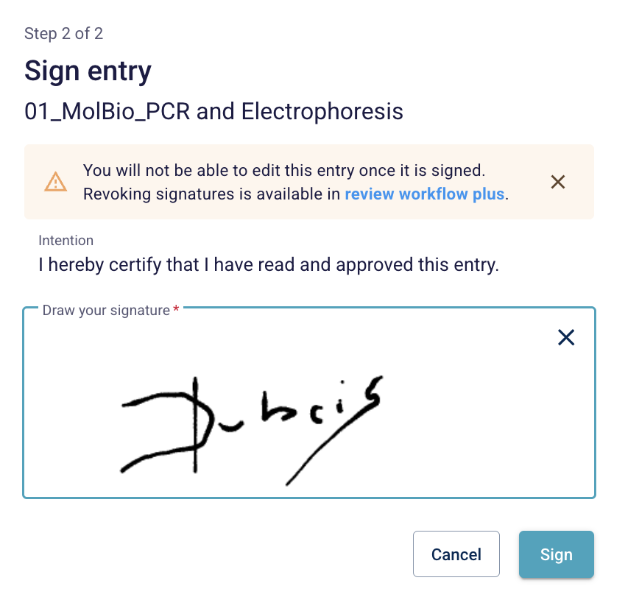
5. If you have selected ‘Draw signature manually’, you will be informed that this signature will lock the entry to prevent any further modification. Draw your signature in the respective field and click Next.
6. In Step 3, you'll be asked to select a reviewer for your entry from a drop-down menu. Any group member with access to the project that the entry was created in, may be selected as a reviewer.
If you cannot find the person you are looking for in the list, please ask your Labfolder group administrator to check the share settings for the specific project in the project directory.
In case you are not required to send your entry to a witness for review, you may select 'I am the only person that needs to sign this entry’.
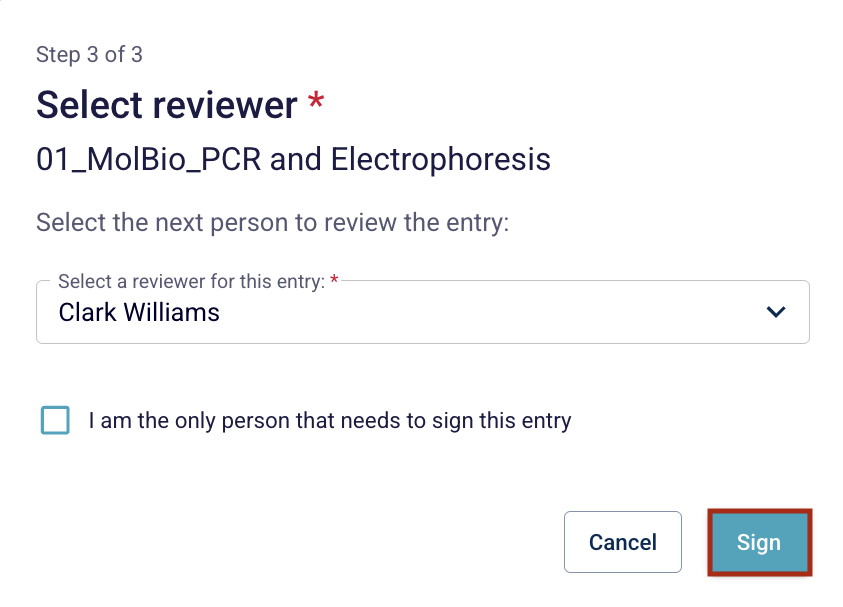
7. After selecting the reviewer, click Sign. Your entry is now locked and cannot be edited further. The group member selected as reviewer will receive a notification within Labfolder and via email.
8. The status of the review process will be indicated at the bottom of the entry and in the Signatures overview page.

Reviewing
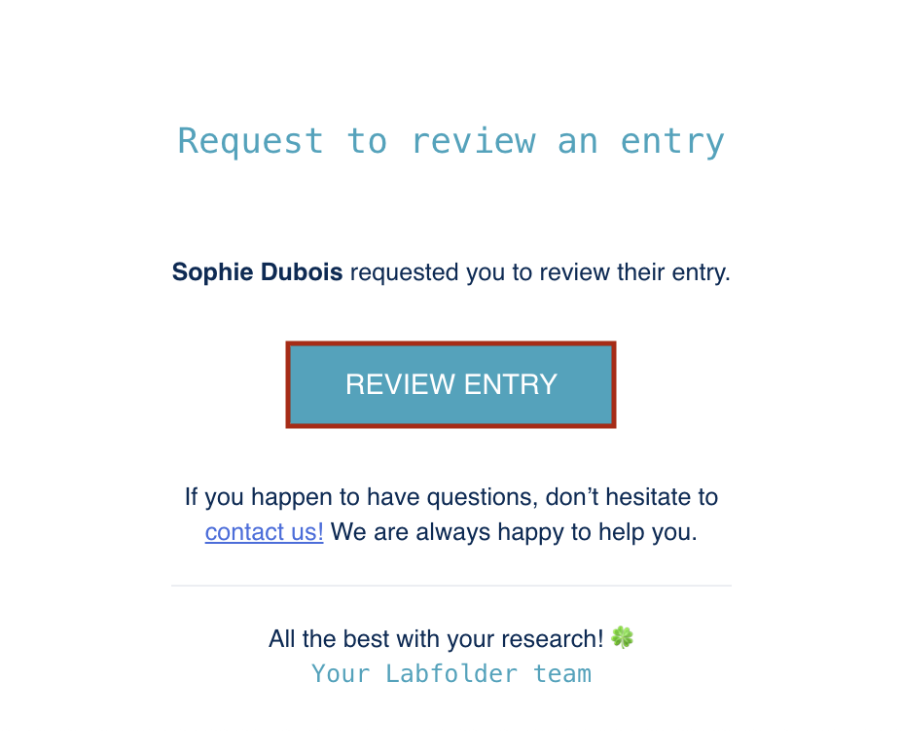
1. The group member selected as the reviewer will receive a notification within Labfolder as well as via email with the request to review the entry.
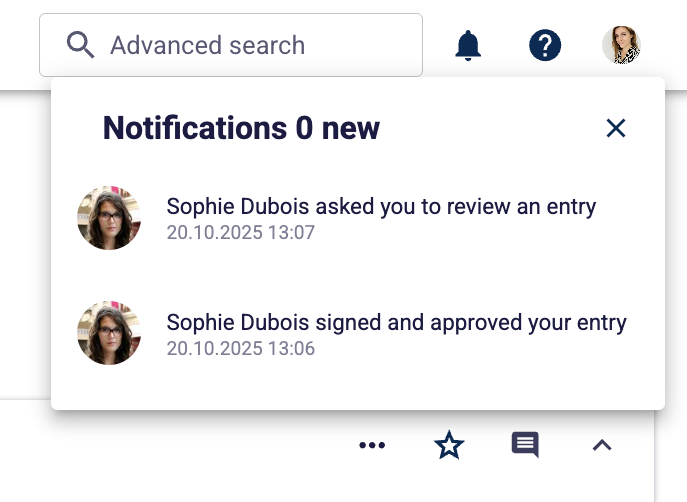
2. There are two ways to navigate to the entry to be reviewed.
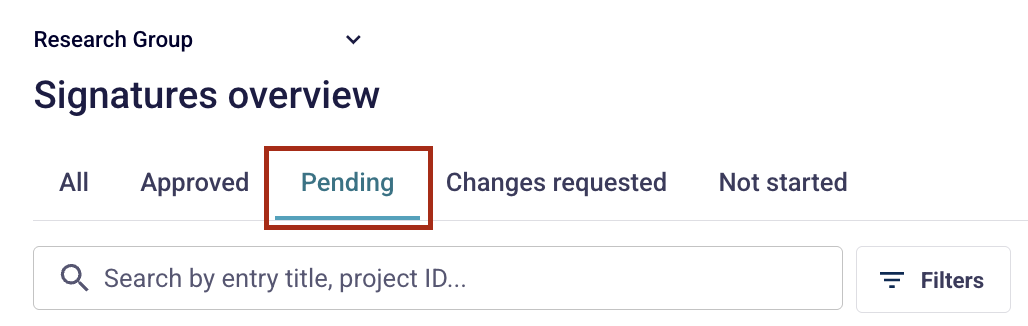
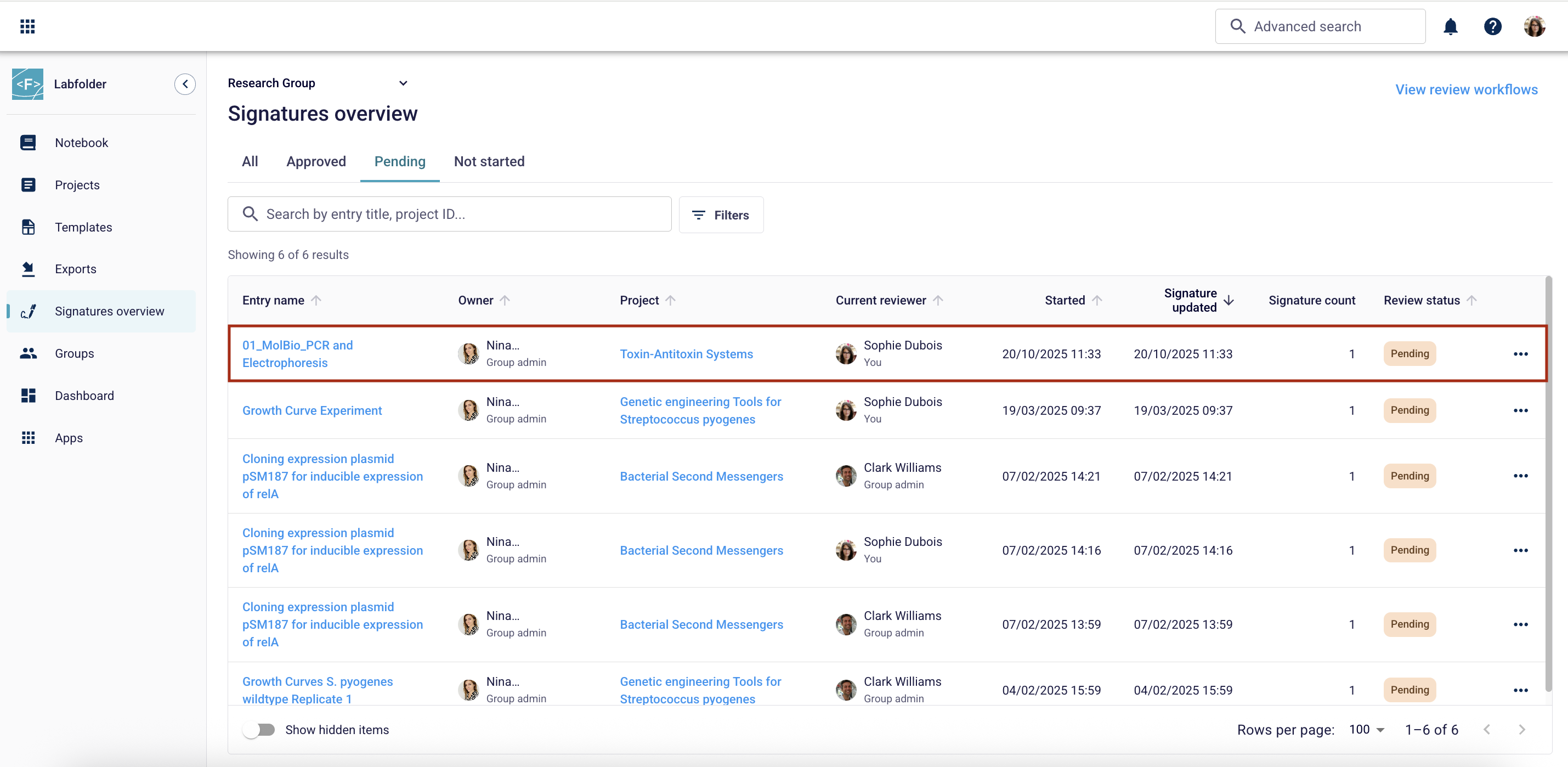
A) If you click on the notification within Labfolder, you will be directed to the Signatures overview page. Select Pending to view all ongoing review processes.
B) In your email inbox, open the message with the request to review an entry and click REVIEW ENTRY to get directed to the entry directly.
3. On the Signature overview page, select the most recent entry for which you are listed as the reviewer and click on the entry name.
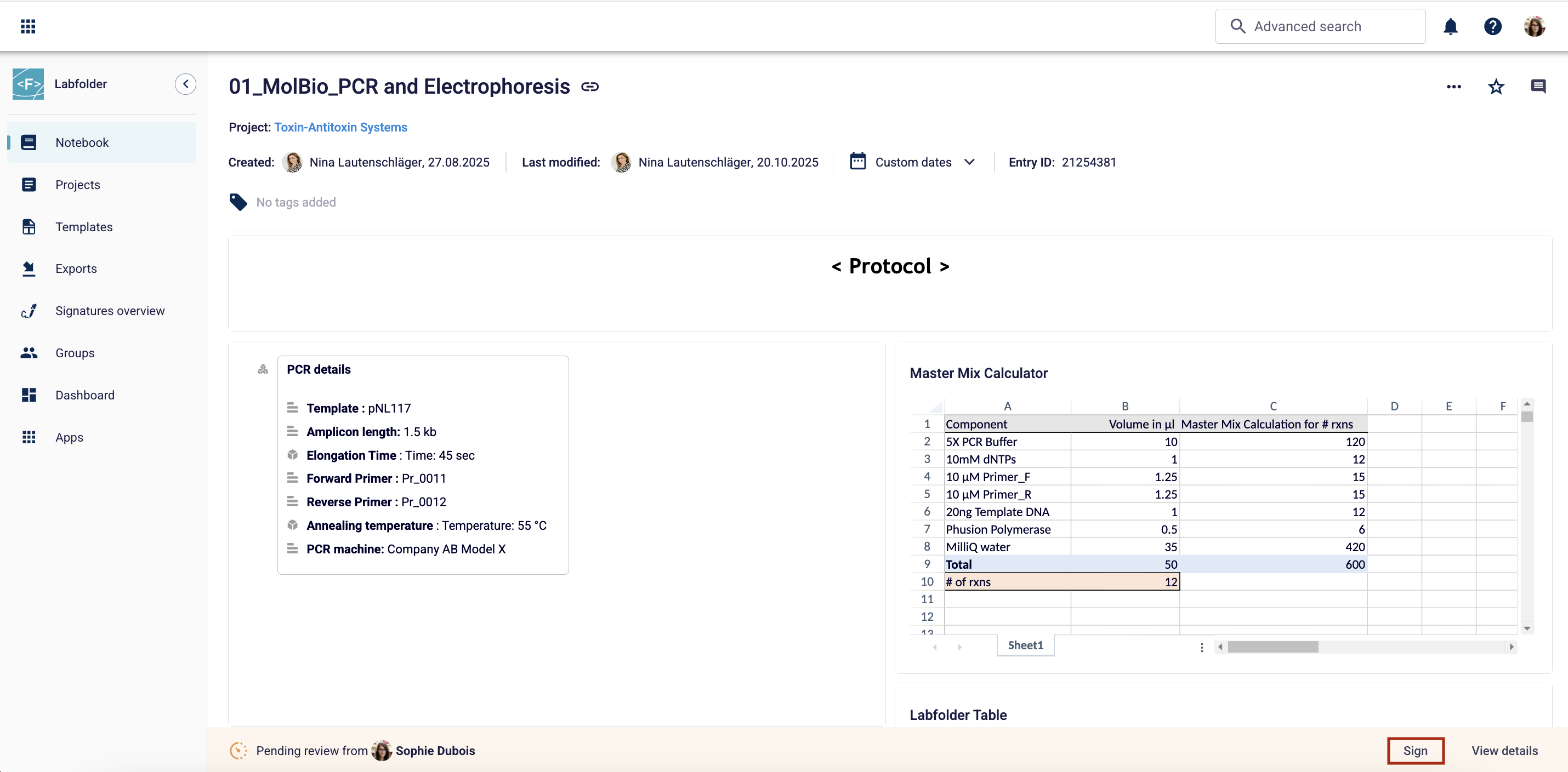
4. Review the content of the entry carefully before giving your approval.
Click Sign on the bottom right of the entry to provide your signature.
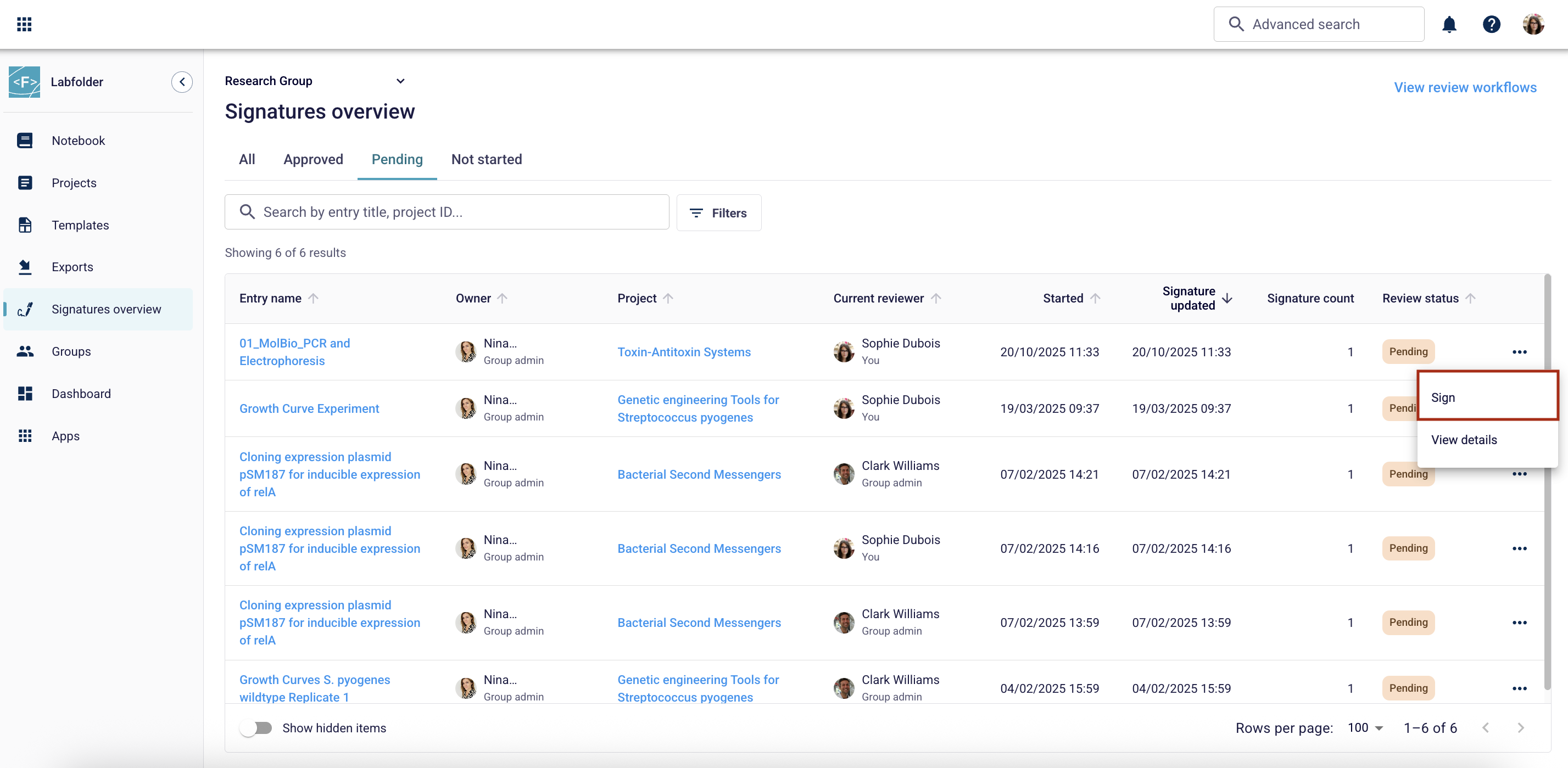
5. Alternatively, you can click on the vertical-dots menu next to the respective entry in the Signatures overview and select Sign.
6. You’ll be asked to select your signing method. You can either sign by entering your Log-in password or draw signature manually.
7. Sign the entry as described above in the section Signing and selecting a reviewer to approve the content of the entry.
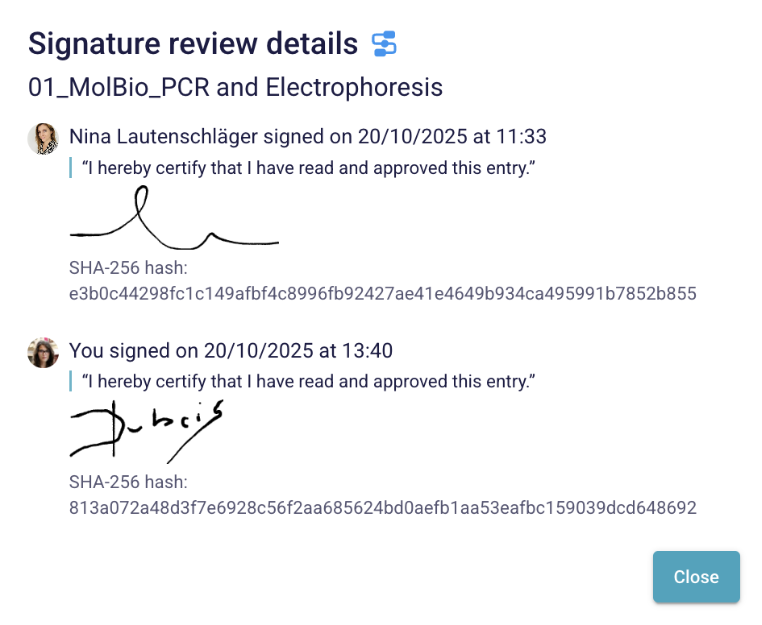
8. The footer of your entry will turn green to indicate the completion of the review process.

9. Select View details to see both signatures with the corresponding timestamps applied to the entry.
Was this article helpful?
That’s Great!
Thank you for your feedback
Sorry! We couldn't be helpful
Thank you for your feedback
Feedback sent
We appreciate your effort and will try to fix the article