Labfolder offers users two Apps for data validation, Review workflows and Review workflows plus:
- The free Review workflows App (previously Sign & Witness) allows you to sign entries in the ELN and request 1 more witness.
- Review workflows plus (previously Signature workflows) is a paid add-on designed to create complex validation workflows, including multiple witnesses and the option to comment on approvals, withdraw signatures or request changes.
The Review workflows plus extension enables users to create custom review processes for their Labfolder group or for specific folders or projects.
This article will walk you through the creation of a new Review workflow and show you how to edit or delete and existing workflow:
- Assign the workflow
- Configure Signatures
- Define additional logic (optional)
- Edit or delete a workflow
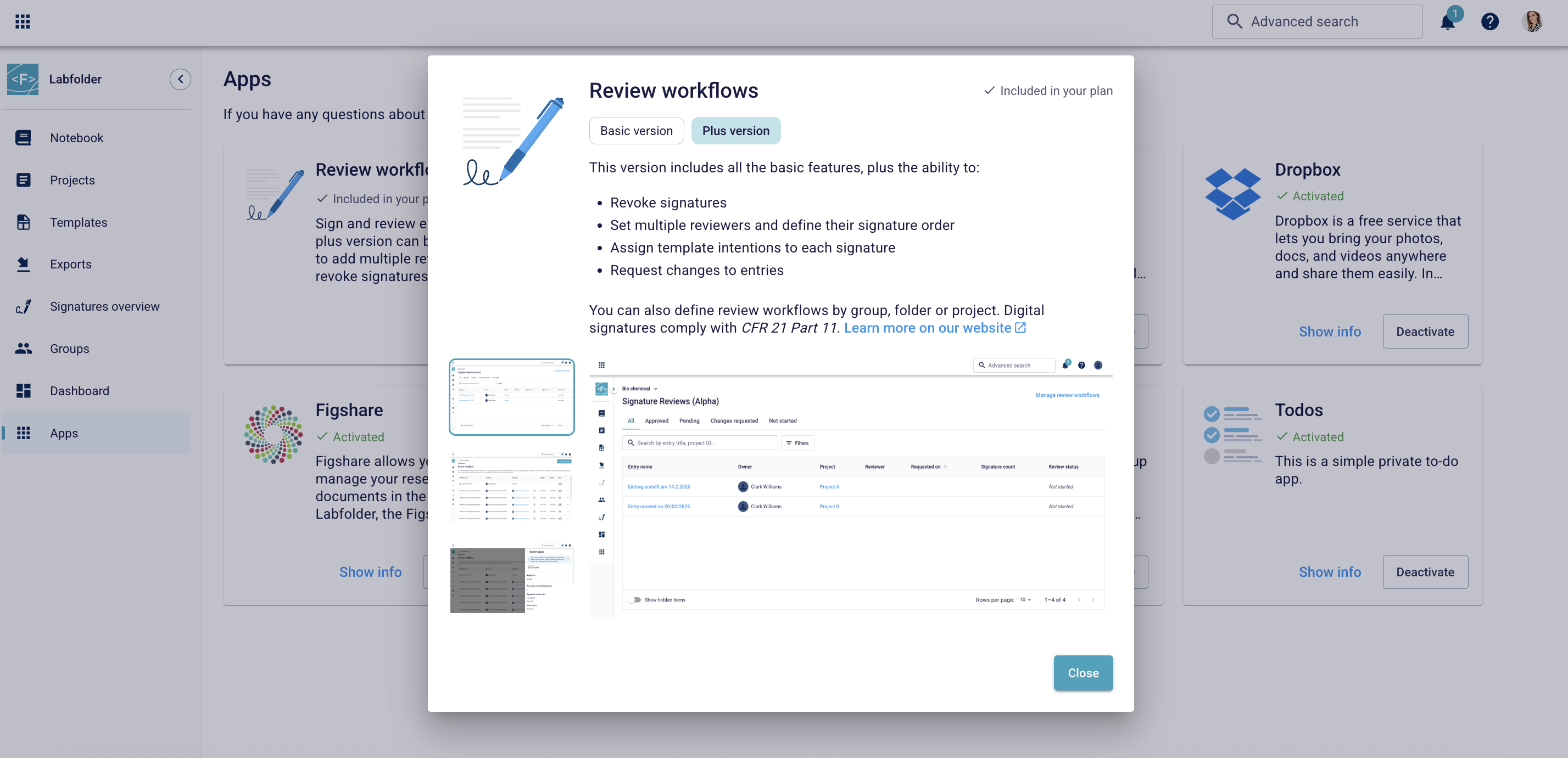
How do I know my group has access to Review workflows plus?
If you are unsure whether your group has access to Review workflows plus, navigate to the Apps page via the main menu on the left.
Click on the Review workflows card to see if Review workflows plus is included in your plan.
Be aware that only Labfolder group members who are set as Administrators can set up, edit and delete workflows.
How to set up a review workflow
Assign the workflow
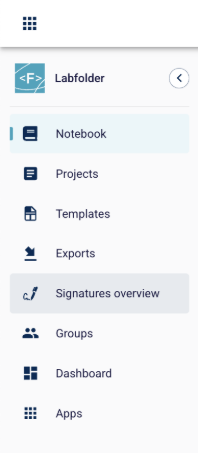
1. Use the main menu on the left to navigate to the Signatures overview.
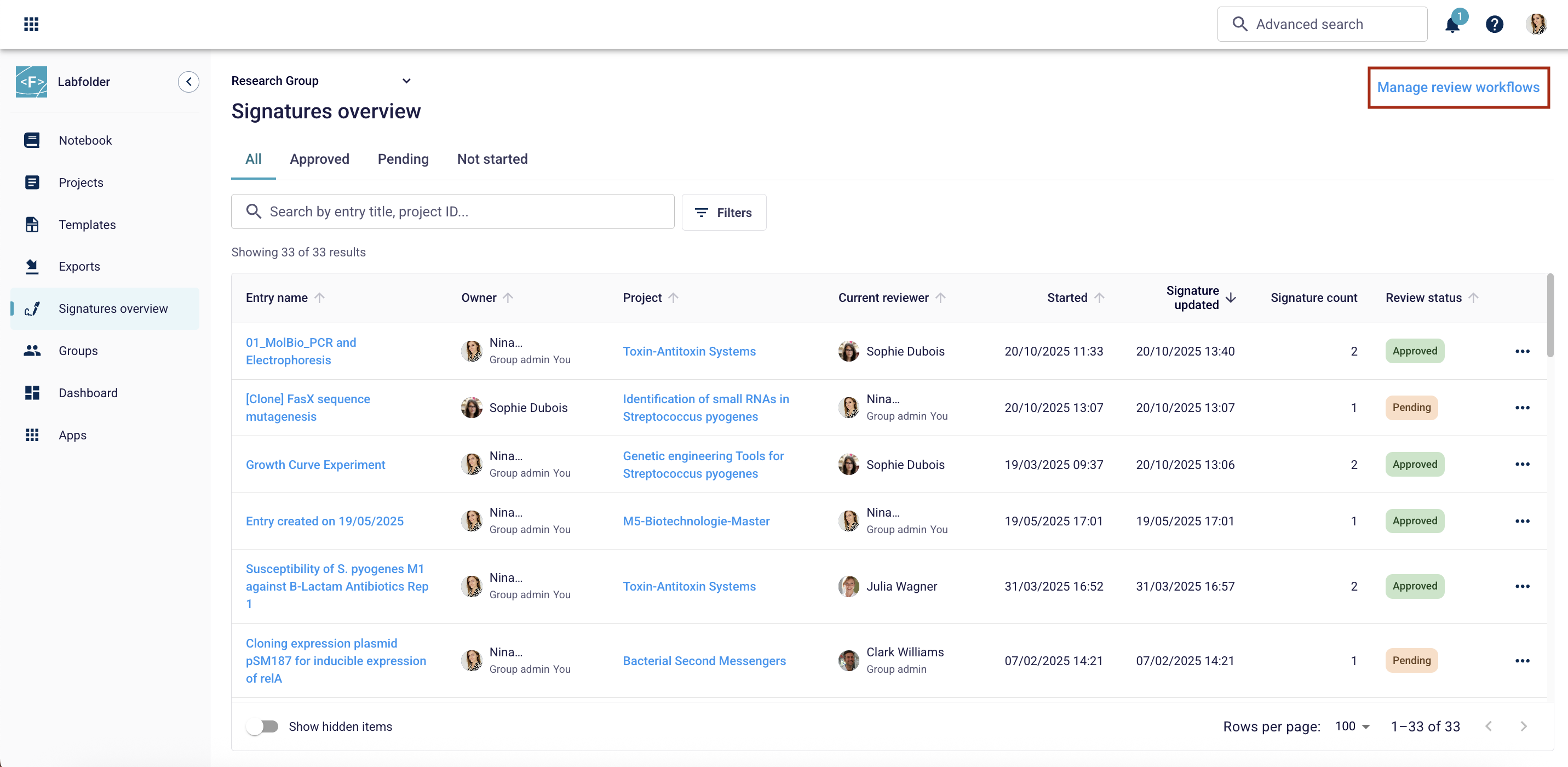
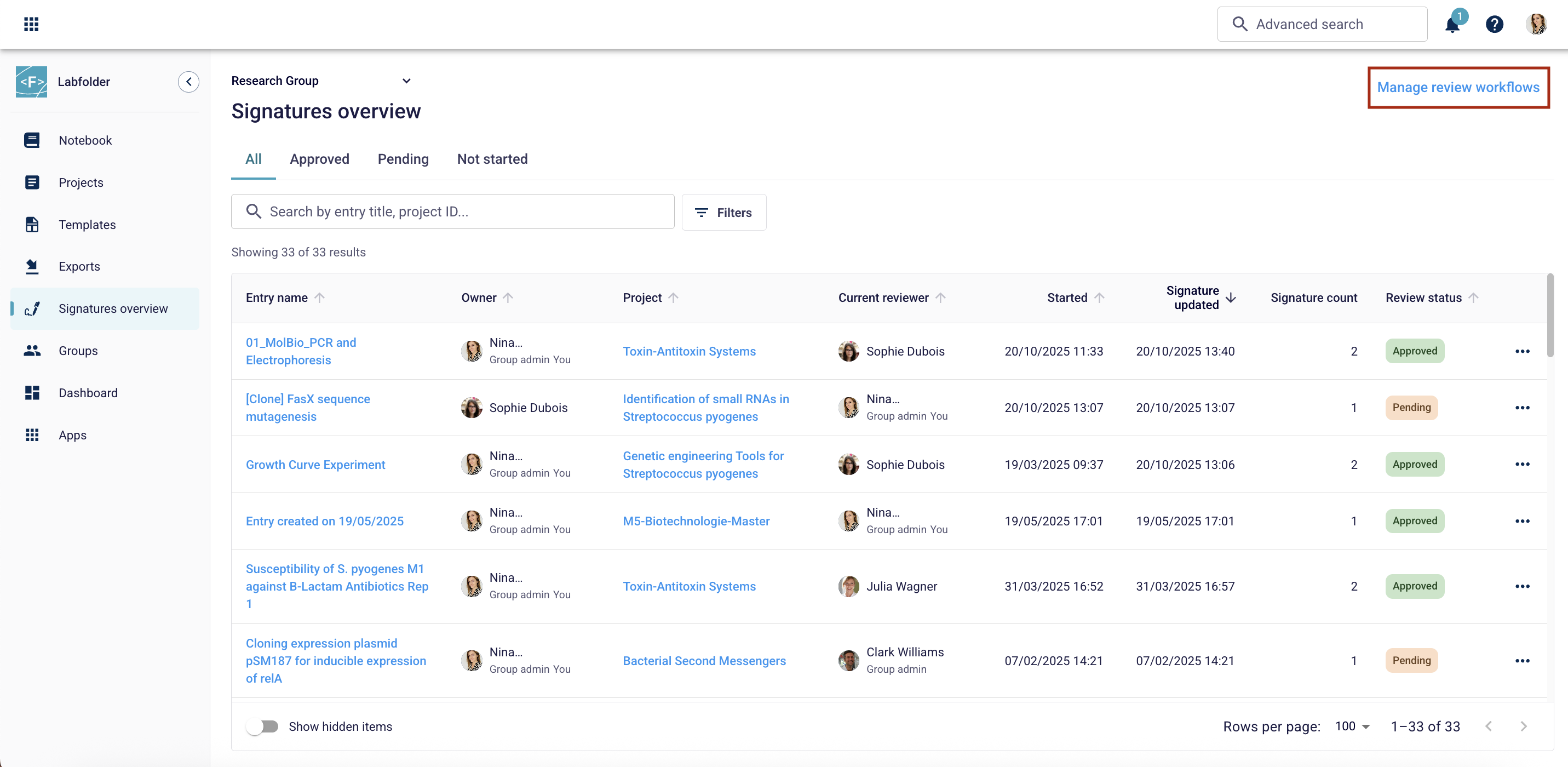
2. On the Signatures overview page, click on Manage review workflows on the top right. You will be redirected to an overview of all review workflows created in your Labfolder group.
3. To set up a new review workflow click on Create review workflow.

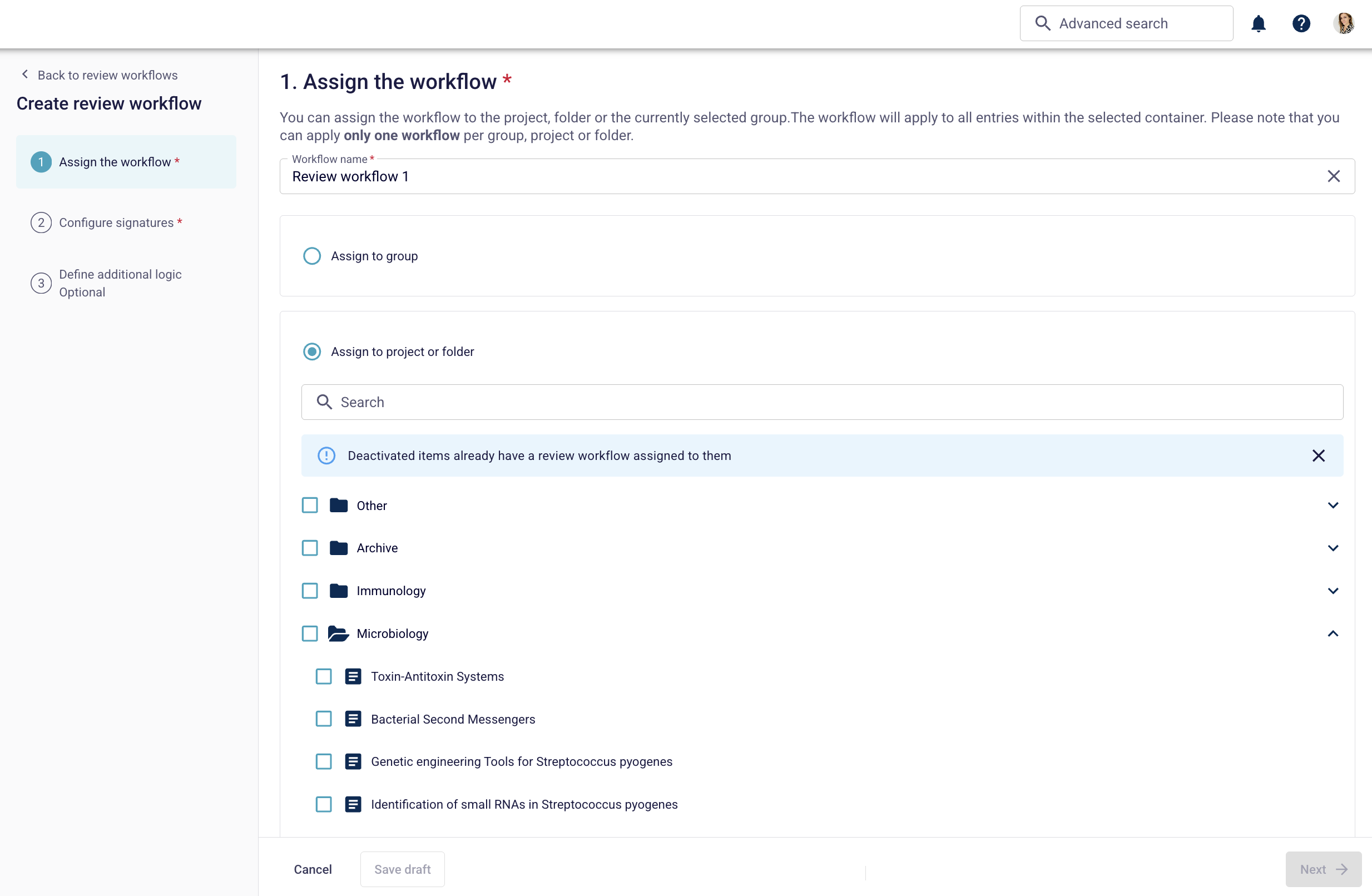
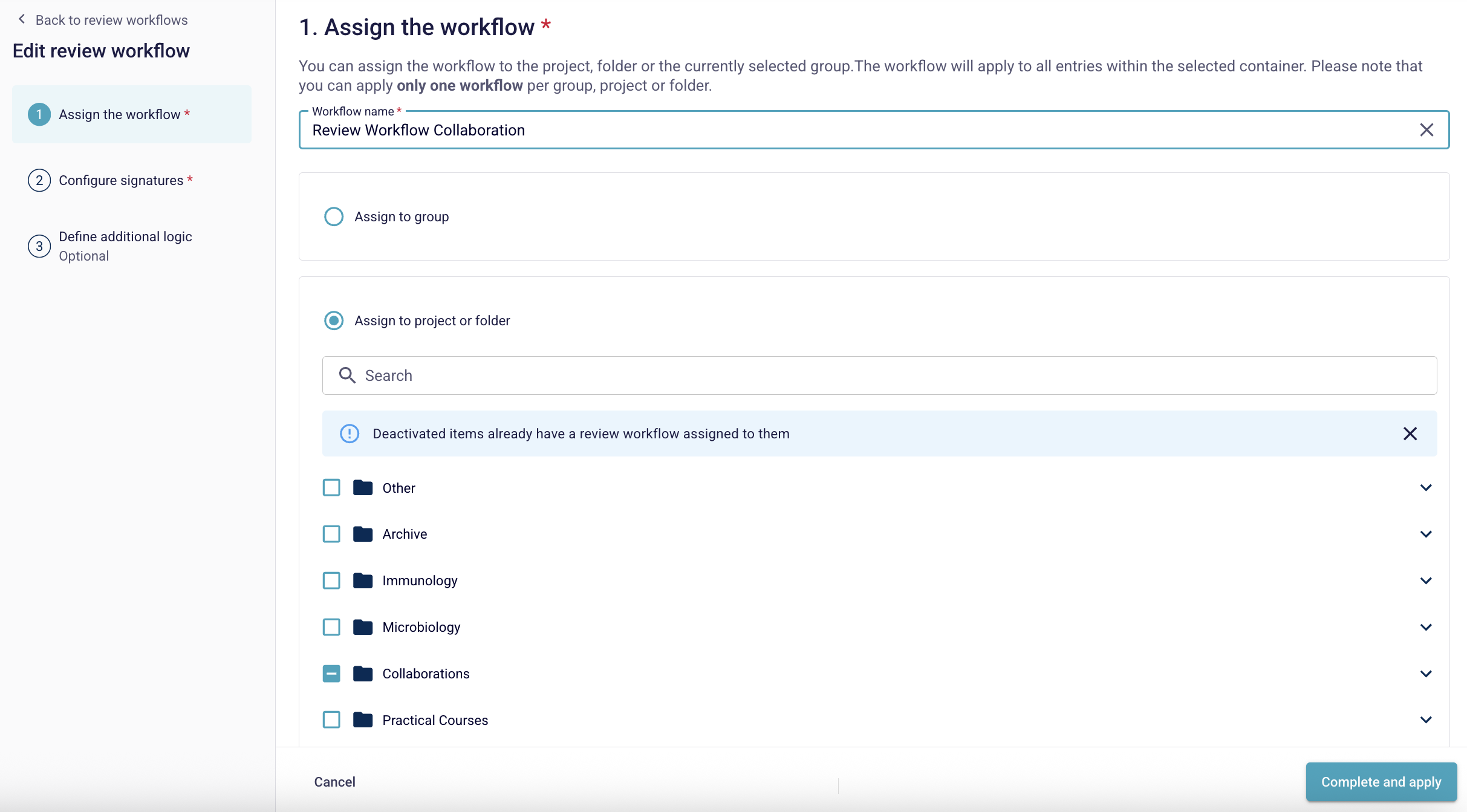
4. In the first step of the setup process, you’ll be asked to Assign the workflow to a group, folder or a project. First, please enter a name for your workflow.
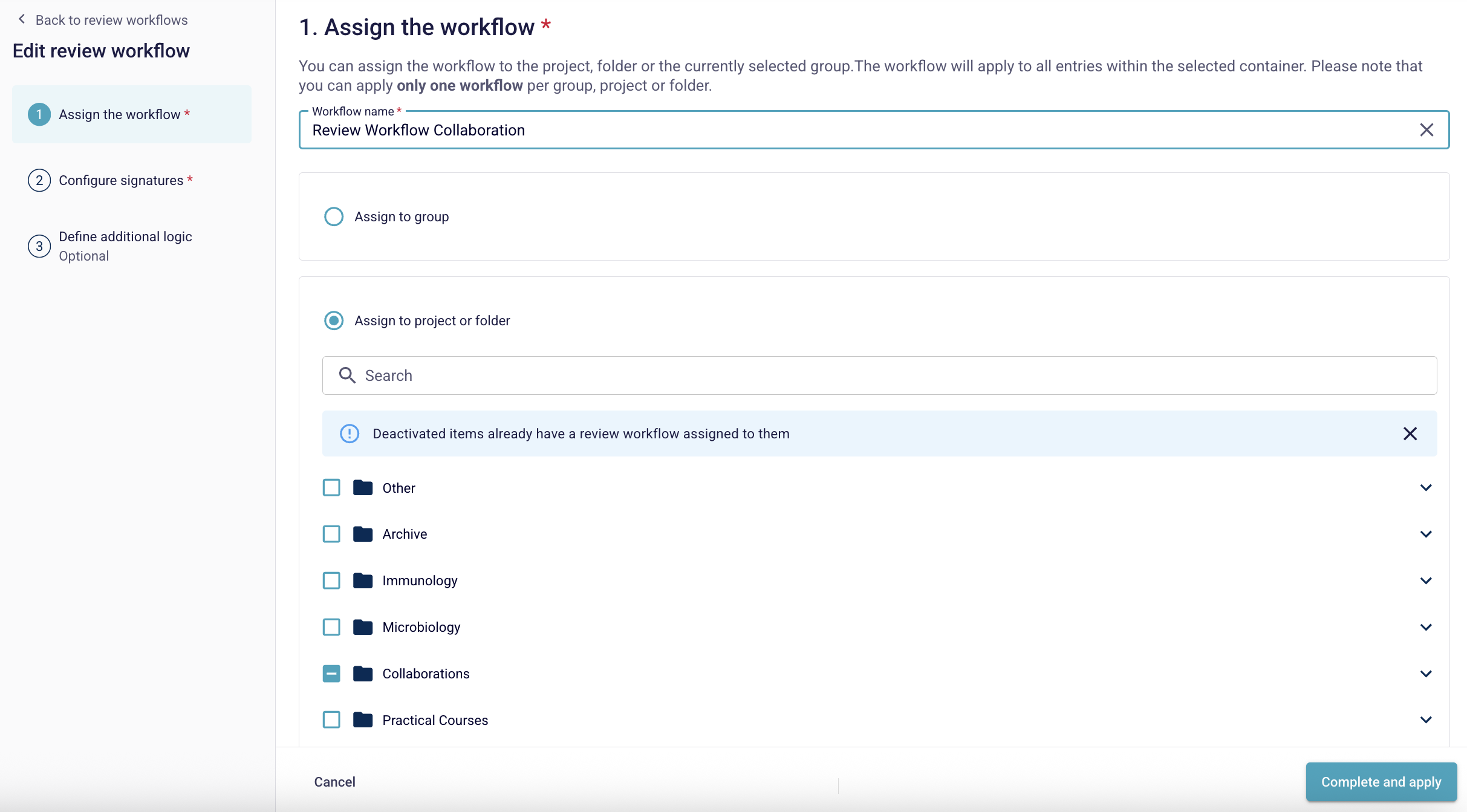
5. Select if you wish to assign the workflow to the Labfolder group, specific folder(s) or project(s). Then, click next.
Configure Signatures
In the second step of the workflow creation, you will be guided through the configuration of the signatures.
1. Select how many signatures per entry should be provided. You can select up to 10 signatures.

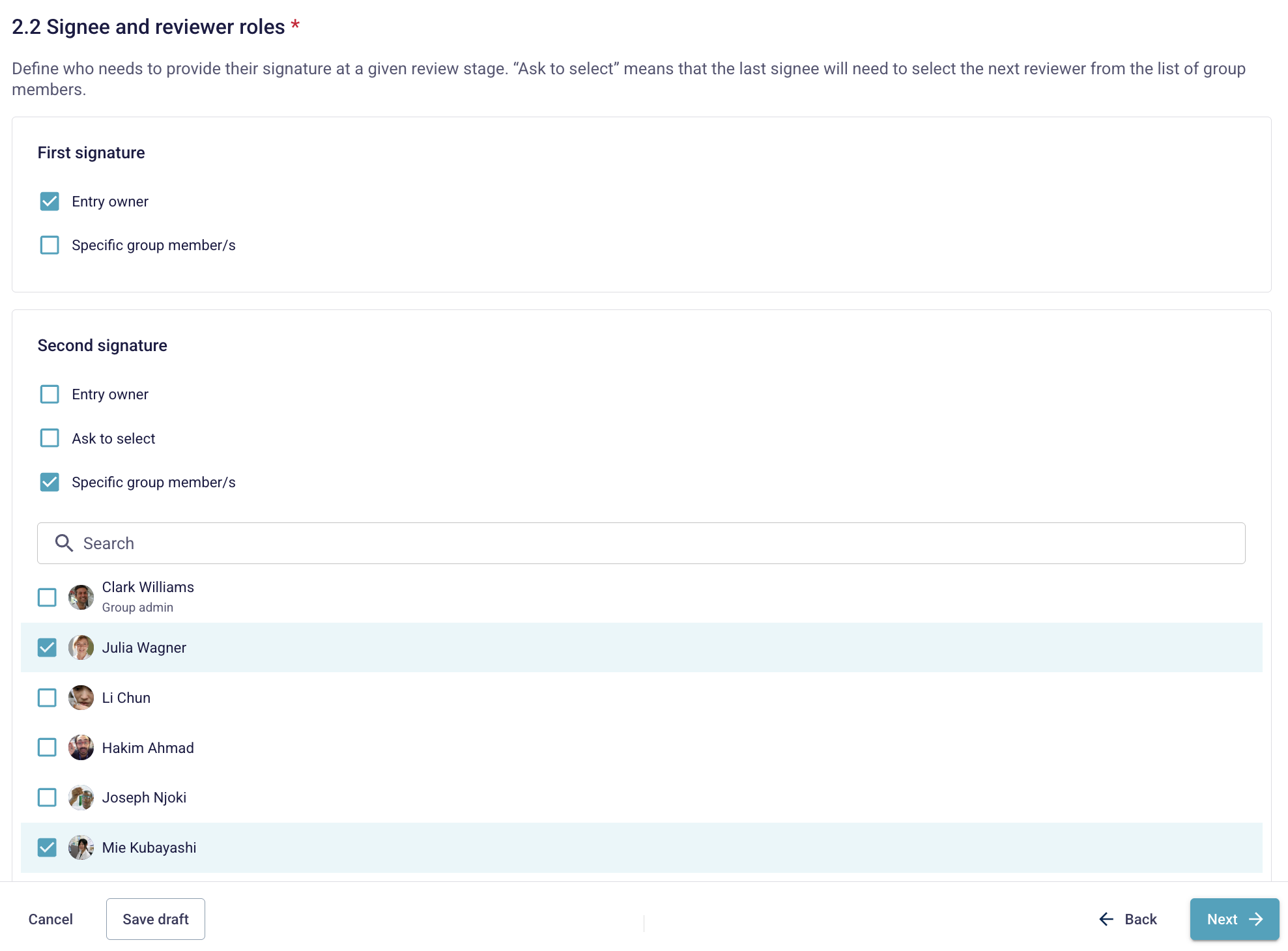
2. Next, you can determine the reviewers for each step of the review process. You can select the entry owner or specific team member(s). ‘Ask to select’ enables the last signee to select the next reviewer from the list of group members.
You may select more than one team member, if you wish for someone to function as substitute.
After selecting the respective reviewer(s) for each step, click next.
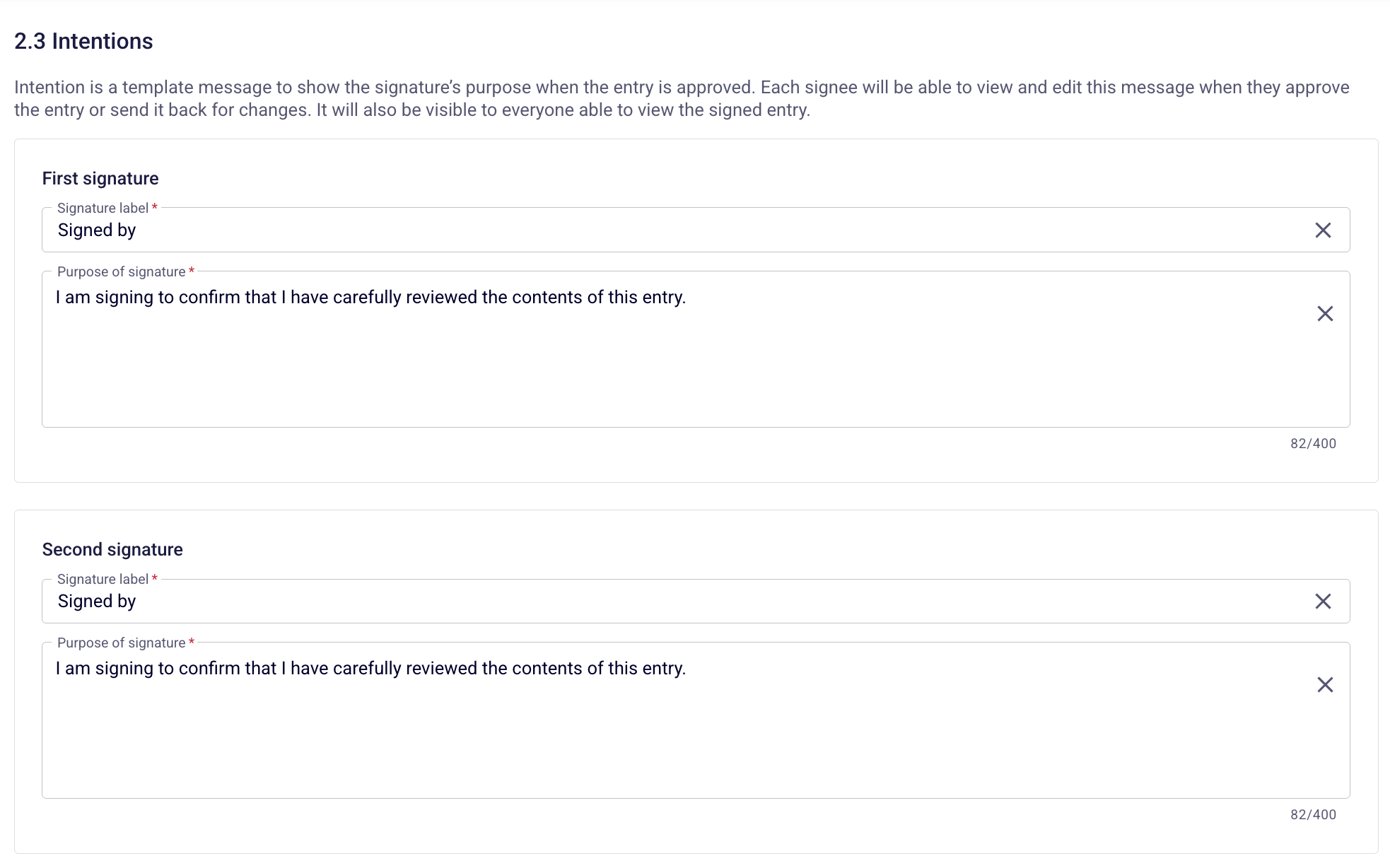
3. Now you can define custom intentions for each signature to state its purpose. You may also keep the default examples. Once you are ready, click next.
Define additional logic (optional)
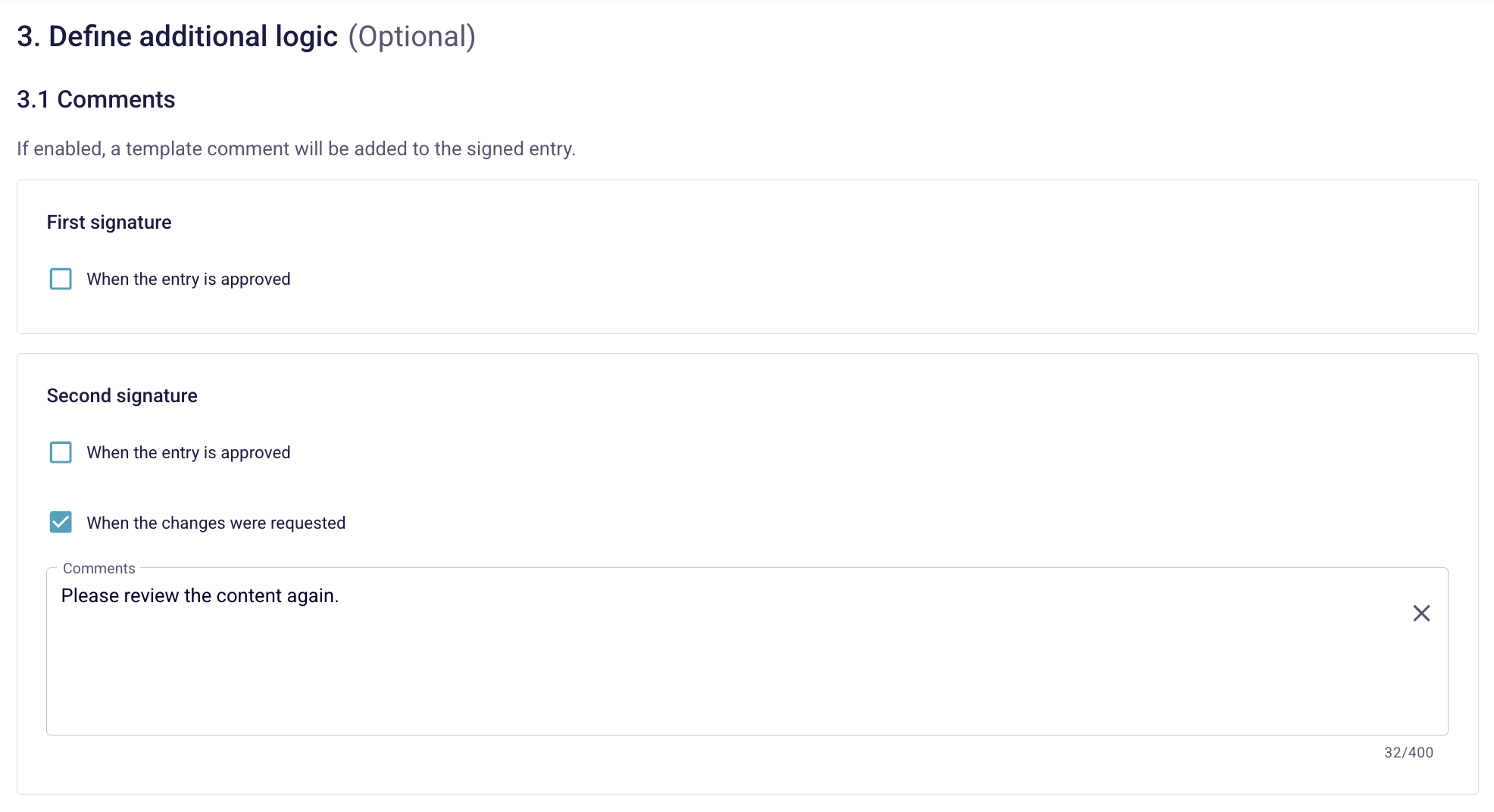
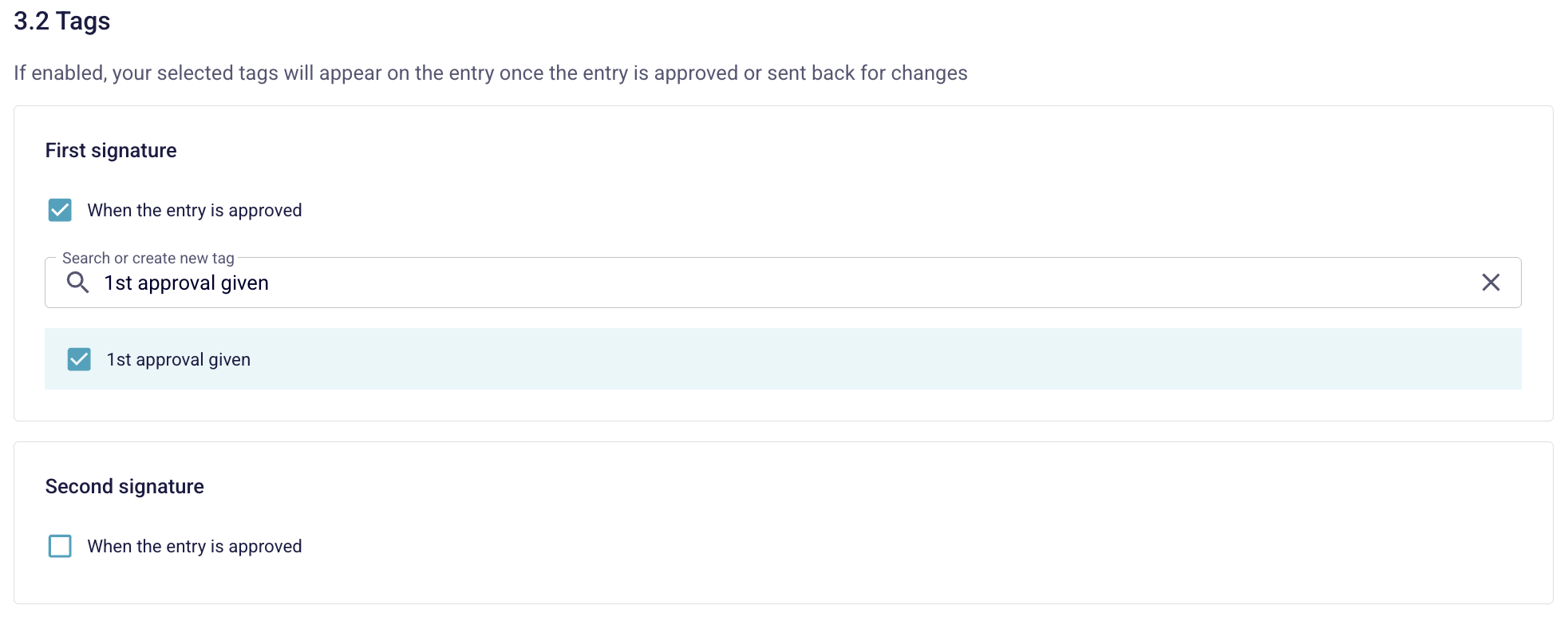
The third step of the setup process for your Review workflow is optional. You may add comments or tags that will be added if the entry is signed or a change is requested. You also have the option to move entries to another project after approval.
1. Add a Comment to every step in the review process when the entry is approved or when the changes were requested.
2. You may also add Tags that help you to filter for entries that are currently going through the review process in the Notebook.
3. Lastly, you have the option to Move signed entries after their approval to a different project. Use the search bar to find the project you wish to move the entries to after approval or select it from the listed options.
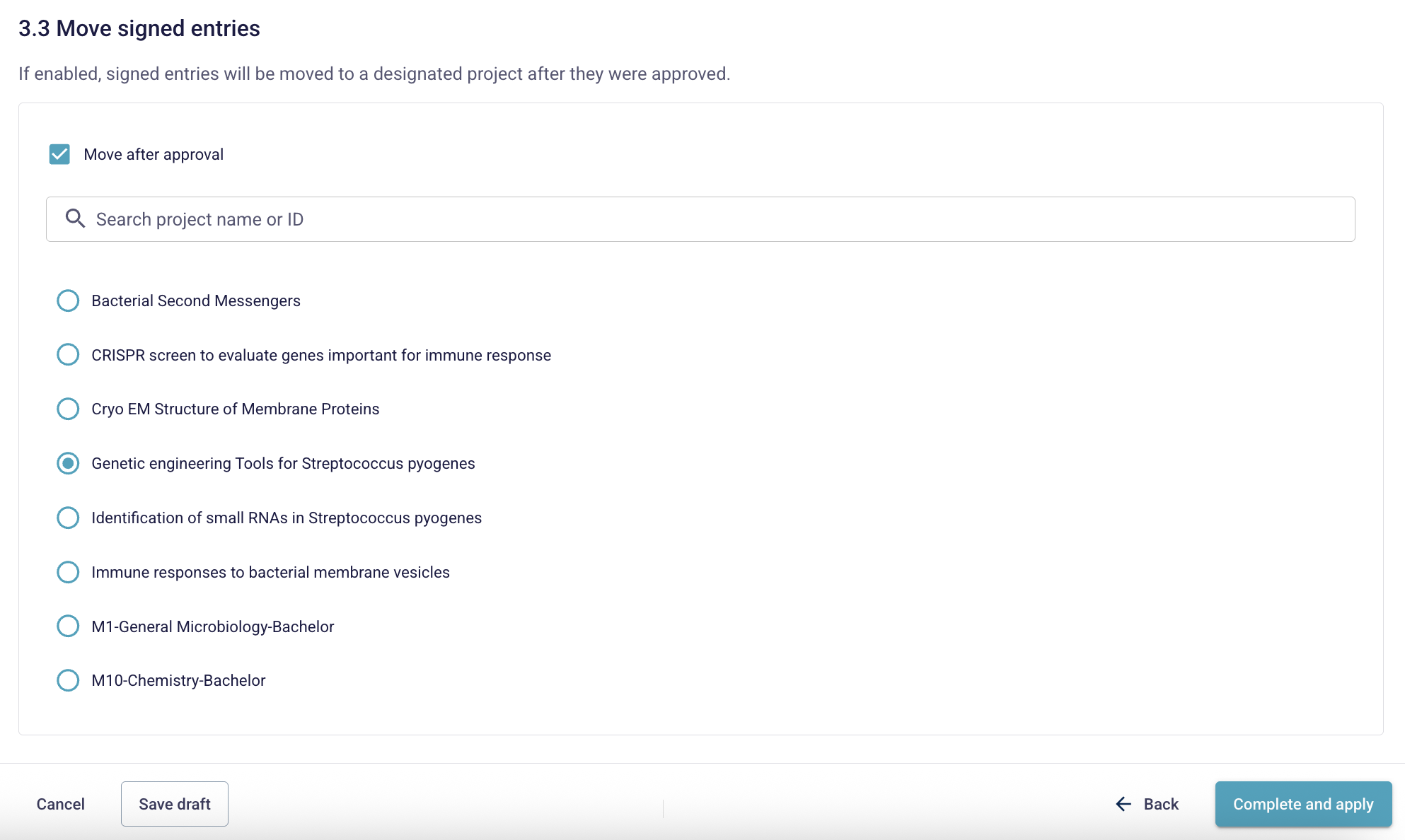
4. Click Complete and apply to finish setting up your workflow and to activate it.
Alternatively, you can select Save draft on the bottom left corner at any point during the setup process to save the status of the workflow and come back later to finalize it.
Edit or delete a workflow
1.To navigate to the overview of your current Review workflows, go to the Signatures overview page and select Manage review workflows on the top right.
2. Click on the three dots menu next to the review workflow to view the details, edit or delete the workflow.
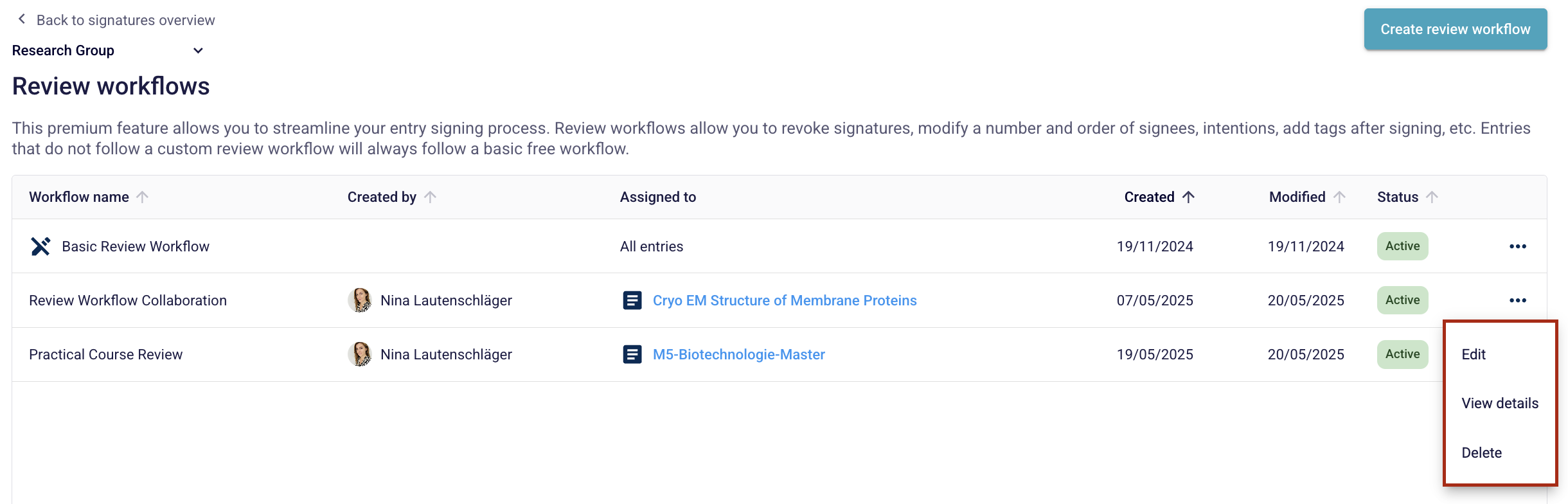
3. Editing allows you to modify all steps of the review process. You may for example change the assignment of the workflow to a different folder, modify reviewer roles and intentions or change the project to which entries shall be moved upon approval.
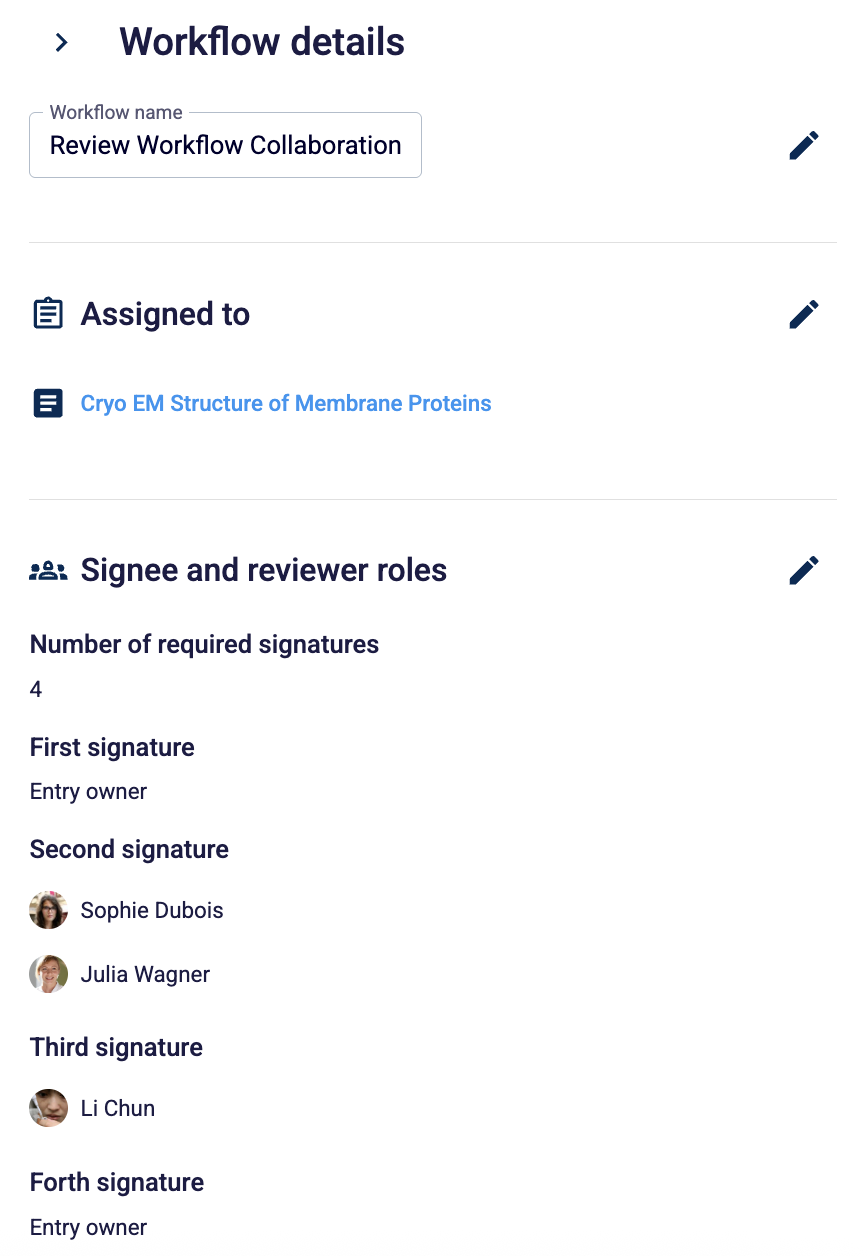
4. View Details opens a pop-up window, allowing you to view all steps of the review process and make quick edits to individual sections.
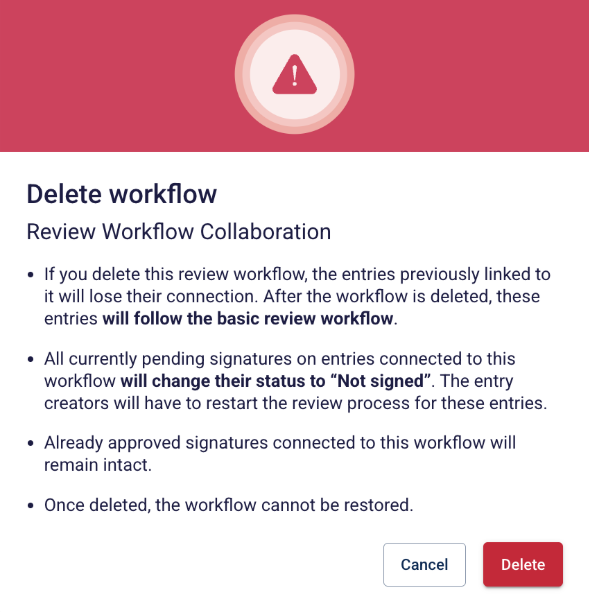
5. If you wish to delete a workflow, select delete. A pop-up window will appear to ask for your confirmation as the workflow cannot be restored after deletion.
All entries that previously followed this workflow, will follow the basic review workflow after deletion.
Pending signatures will change their status to ‘Not signed’ and the entry creator will need to restart the review process for these entries.
All approved signatures will remain intact.
If you would like to learn more about enabling Review workflows plus for your team, please contact us at feedback@labfolder.com and we will be happy to assist.
Was this article helpful?
That’s Great!
Thank you for your feedback
Sorry! We couldn't be helpful
Thank you for your feedback
Feedback sent
We appreciate your effort and will try to fix the article